
Where Winds Meet Interactive Map
Oddities, chests, Meow Meow, quests and everything you can gather, on a map that opens in your browser. Plus a mini-map that stays on top of the game, so you never have to minimize it.
Over 44,000 points and all 889 quests, taken from the official game and kept up to date with every patch. Free, with nothing to install.
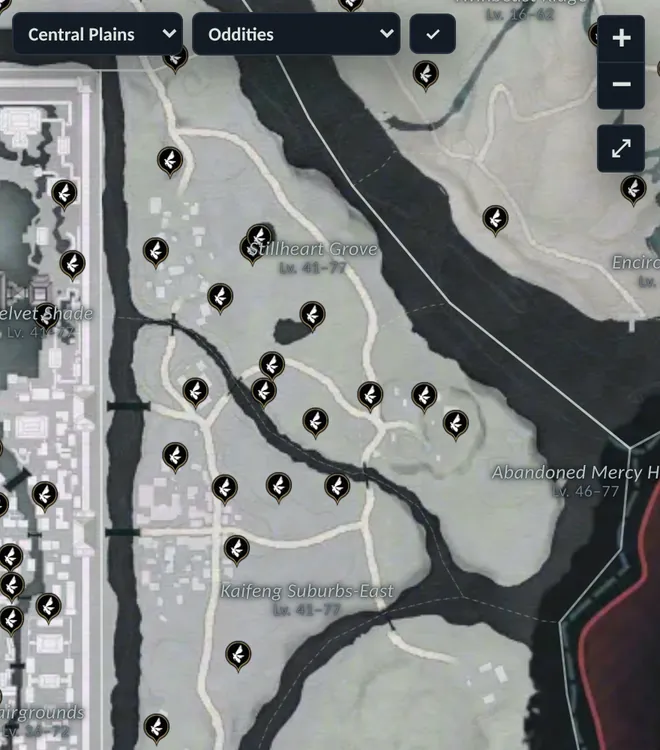
What’s on the map
44,415 places across four maps: the Central Plains, with Kaifeng, Qinghe, Qingzhou and Jiangnan State; Hexi; Hutuo; and the Imperial Palace.
- Exploration
- Oddities, chests, Meow Meow and cats, puzzle caves, hidden paths and the Boundary Stones you teleport to.
- Quests
- All 889 quests, with their places marked A, B, C… in the order you do them, how they start and what they reward.
- Gathering
- 148 species of herbs, mushrooms, ores, insects, birds and more, each with its icon, its stars and what it gives when gathered.
- People & combat
- Named NPCs, healers, debates, fishing contests, shops, world bosses and outposts.
Official data, always up to date
Everything comes from the official game: its client files and NetEase’s official map. Every time the game updates, the map updates with it.
Last update: .
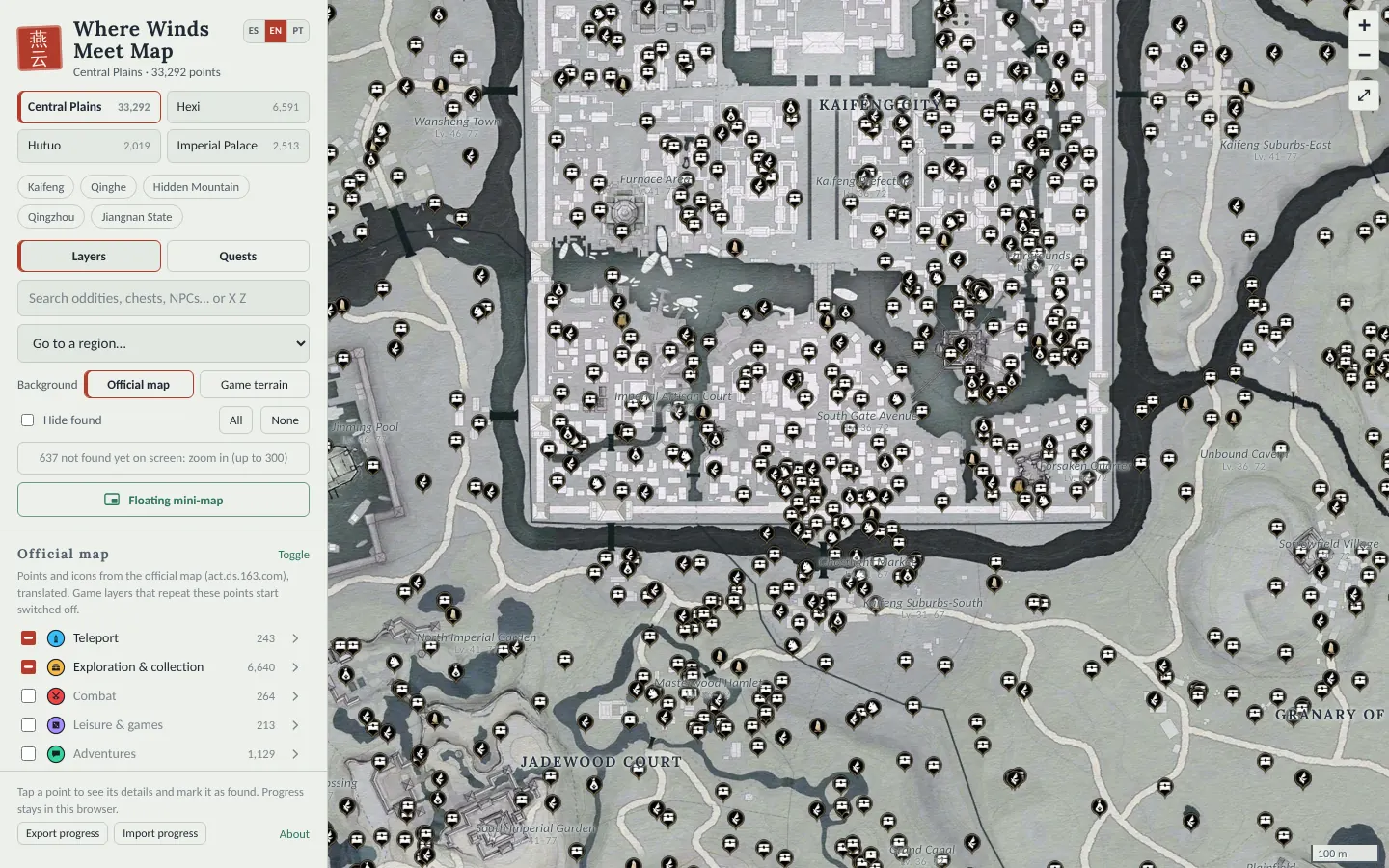
How to use the map, step by step
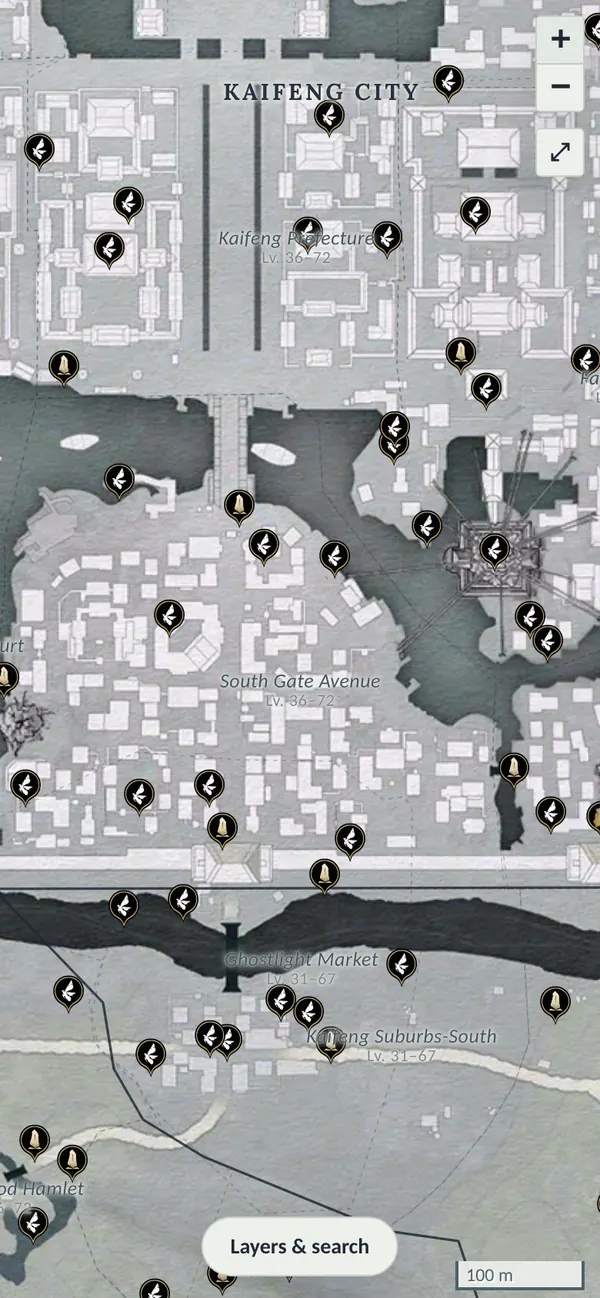
Everything is done from the panel on the left. On a phone, open it with the “Layers & search” button.
-
Pick the map, the area and the background
The four maps are at the top of the panel. Below them, the area shortcuts take you straight to Kaifeng, Qinghe, Qingzhou or Jiangnan State, and “Go to a region…” has the full list.
Under “Background” you choose between the “Official map” and the “Game terrain”, which shows the relief taken from the game files. The map follows your system’s light or dark theme, and you switch the language between ES, EN and PT at the top.
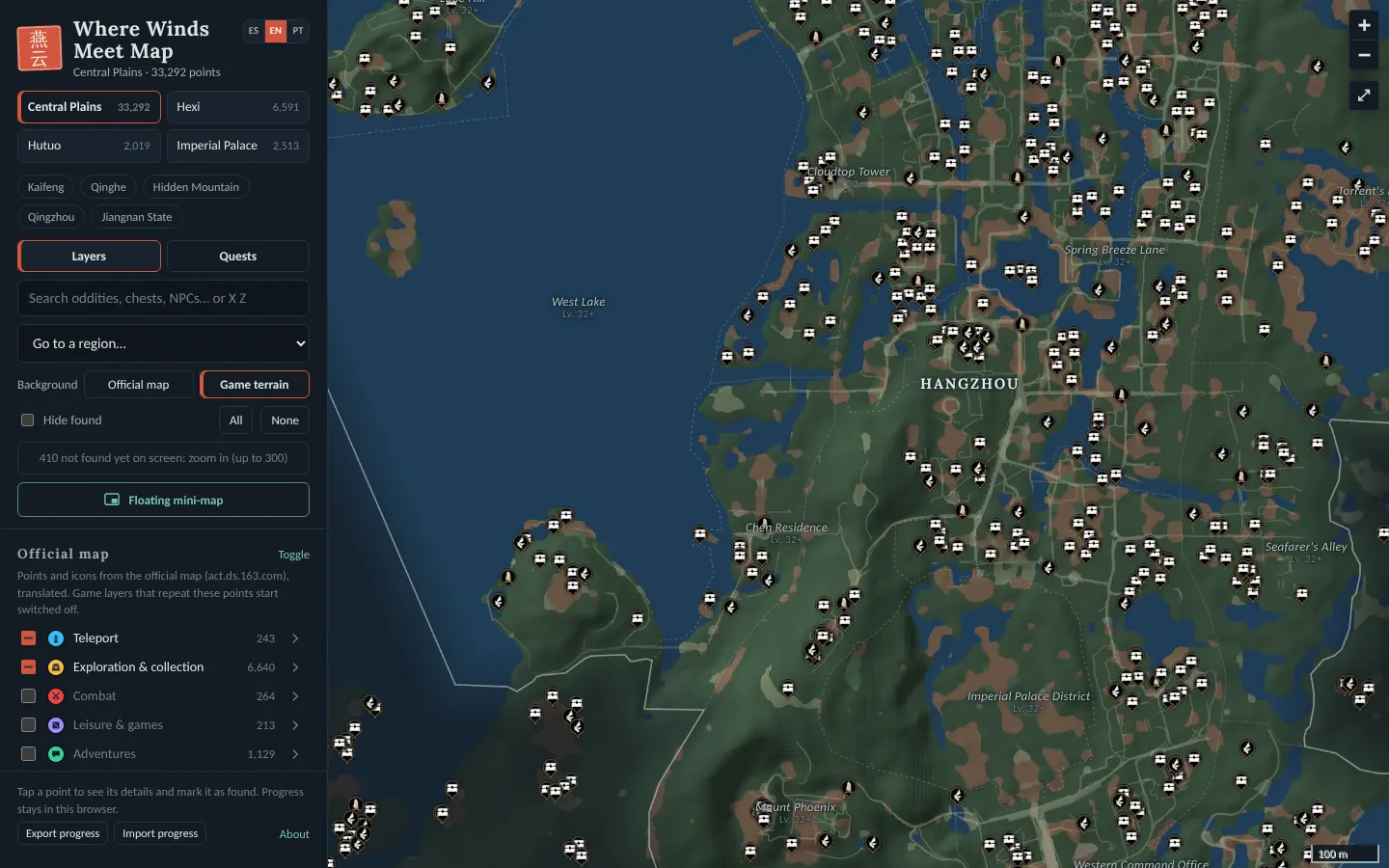
Jiangnan State with “Game terrain” and the dark theme. -
Turn on the layers you need
Layers are grouped into the official map, the game layers and Gathering. The arrow opens each group so you can pick layer by layer; “All” and “None” switch them all at once. The number next to each layer is how many points it has on the map you’re viewing.
Game layers that repeat official-map points start switched off, so you don’t see the same thing twice. In Gathering you can turn on a whole group or a single species.
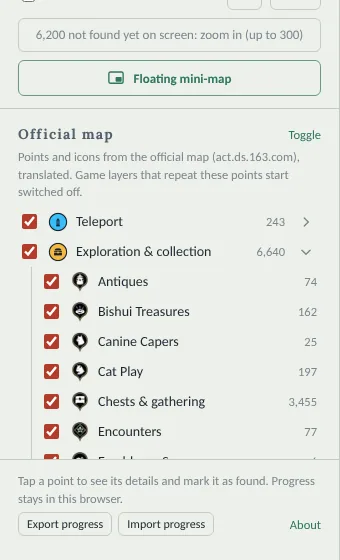
The “Exploration & collection” group, opened. -
Search and tap a point
The search box finds oddities, chests, NPCs, species and quests on all four maps at once. It also takes game coordinates: type X and Z, for example “-4257 -2187”, and the map takes you there. Press / to jump to the search box.
Tap a point to see its name, region, coordinates, height and the quests that pass through it. “Show all … on the map” highlights every point of the same kind, and “Copy coordinates” gets them ready to paste.
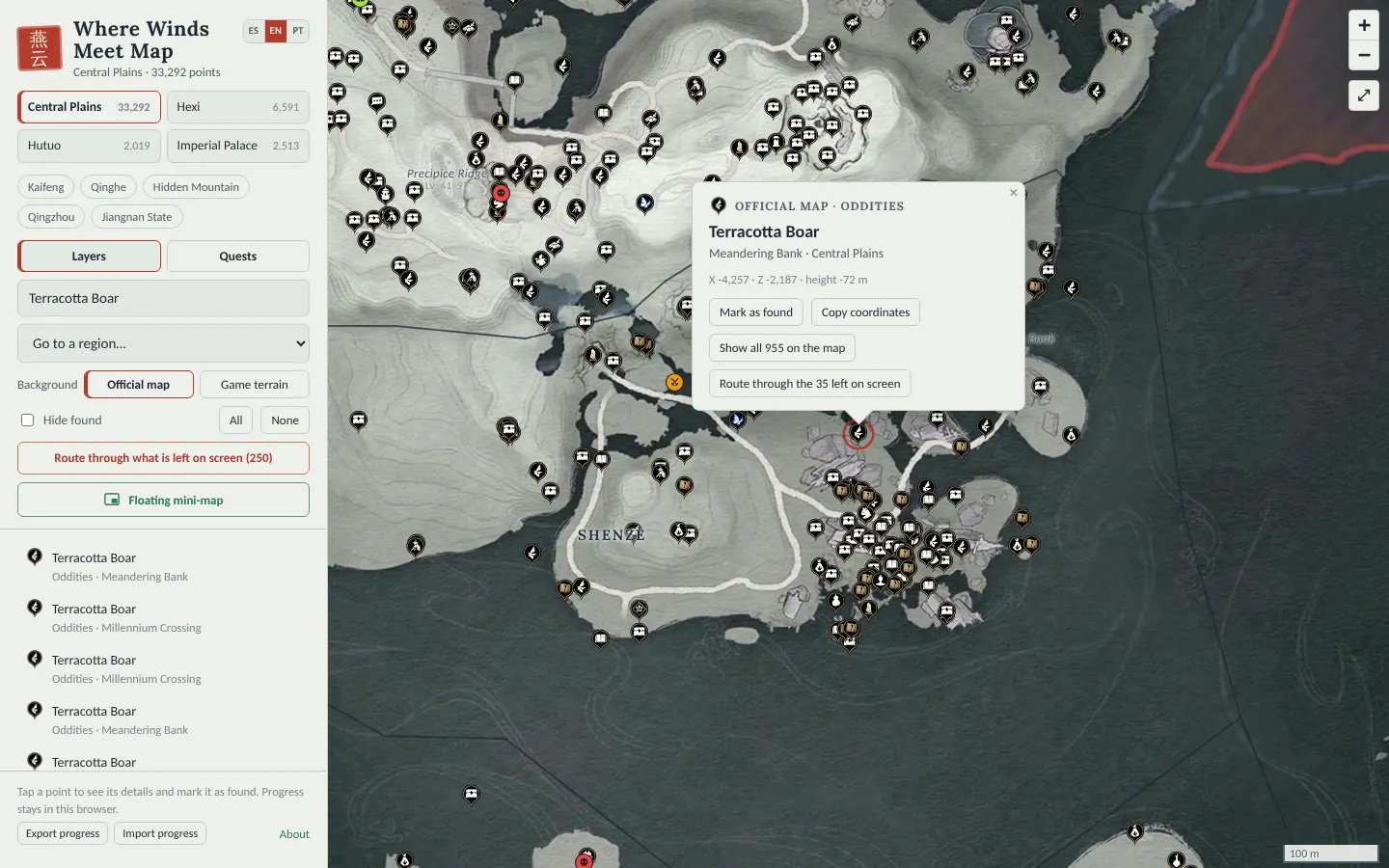
An oddity’s details: the Terracotta Boar. -
Mark what you find
“Mark as found” grays the point out, and the panel keeps count for each layer. Tick “Hide found” to clear what you’ve already collected off the map.
Your progress is saved in your browser. “Export progress” downloads a file with your points and finished quests, and “Import progress” loads it on another PC or browser.
-
Follow a quest step by step
In “Quests”, pick one and the map marks its places with letters: A, B, C… in the order the game asks for. When you have to go back to a place, its letter shows up again. ◀ and ▶ move from one step to the next.
You can filter by name or reward, by type and by the area where it starts, and mark the ones you’ve done to hide them.
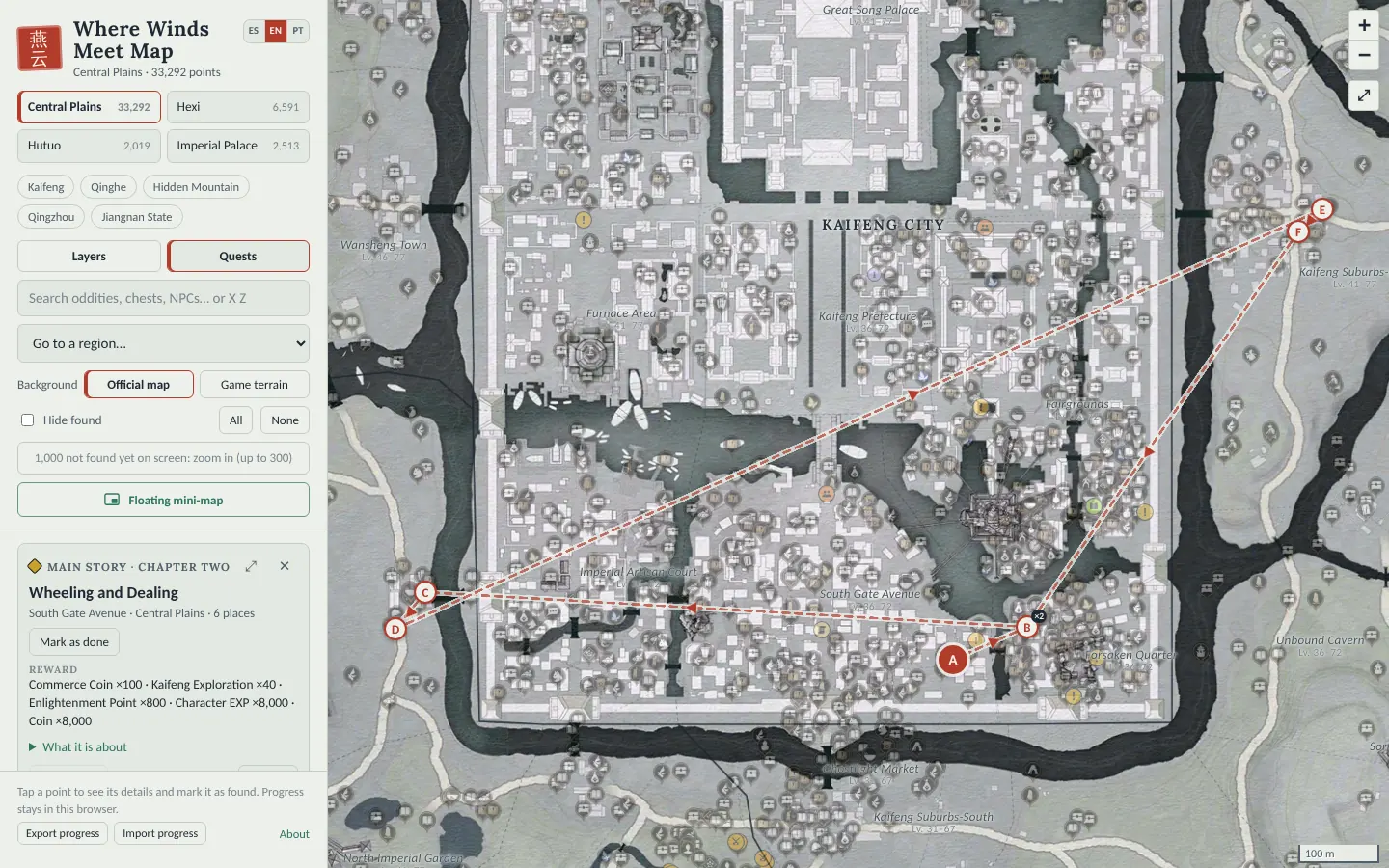
“Wheeling and Dealing”, from the main story, with its six places in Kaifeng. -
Build a gathering route
Frame the area you’re going to cover and tap “Route through what is left on screen”. The map builds the shortest path through what you’re missing from the layers that are on, starting with the point closest to the center.
A bar at the bottom shows the point you’re on: ✓ marks it as found and moves to the next one. If you close the browser, the route picks up where you left off.
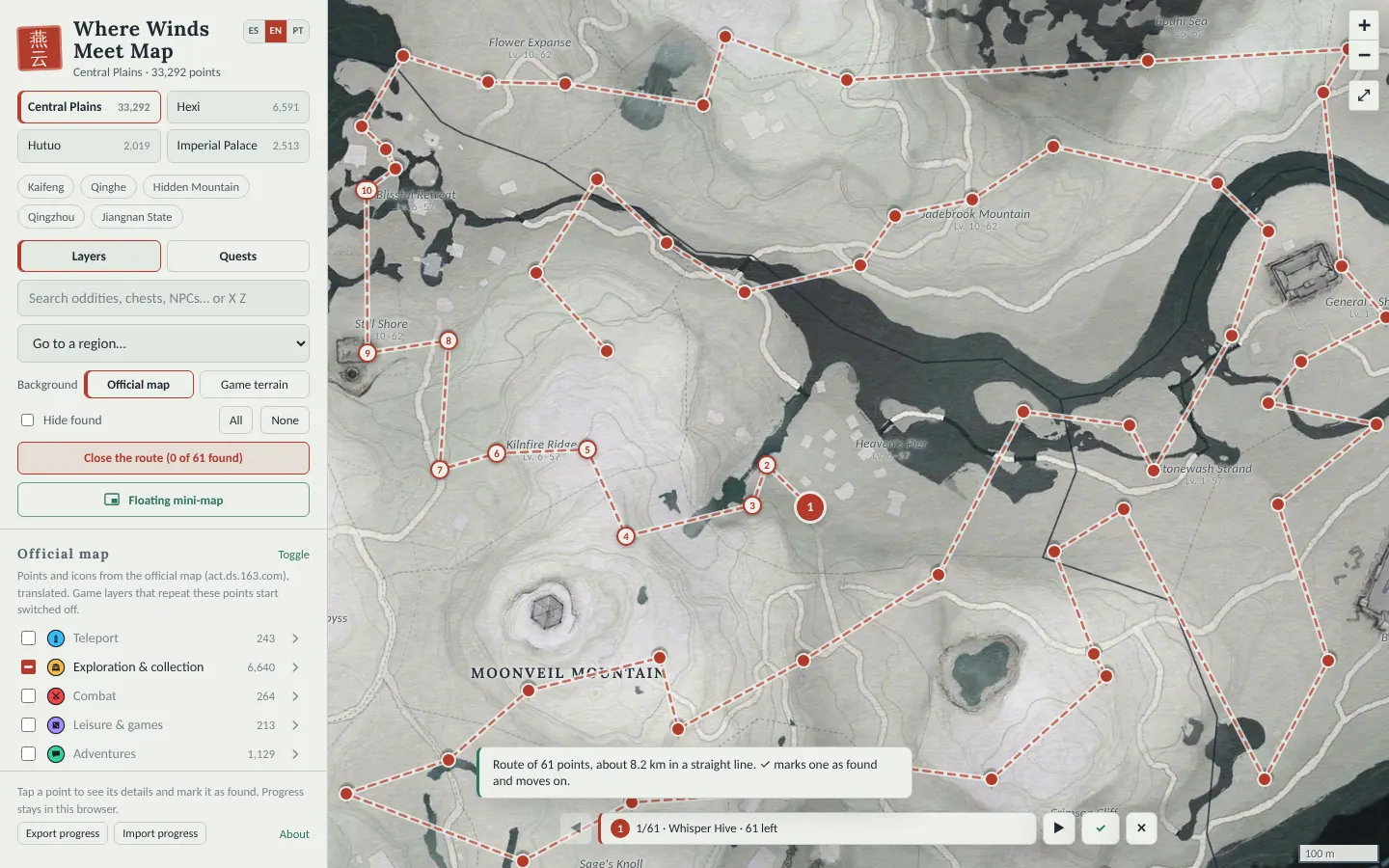
A route through 61 oddities in Qinghe, about 8 km in a straight line.
The mini-map: your map on top of the game
It’s made to use while you play. It opens in a small window that always stays on top, so you can see where the next oddity is without minimizing the game or pressing Alt+Tab.
Run the game in a window
In the game settings, under “Display Mode”, choose “Windowed” or “Fullscreen”. With “Exclusive Fullscreen”, no window can stay on top of the game.
Open the mini-map
Open the map in Chrome or Edge and click “Floating mini-map” in the panel. Move it and resize it so it doesn’t get in your way.
Choose what to show
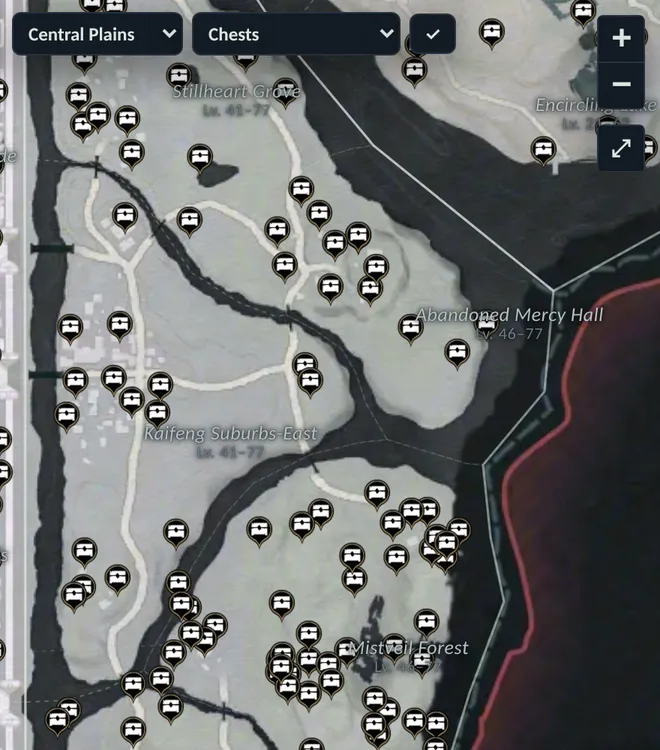
At the top you pick the map and what to show: oddities, chests, Meow Meow and cats, Boundary Stones, experiences and tales, the whole official map or “My layers”, which are the ones you have on in the main map.
Play and mark
Whatever you mark on the mini-map is marked on the main map too, and the other way around. If you have a route or a quest open, the mini-map follows it.
In Firefox and Safari the mini-map opens as a regular window that doesn’t stay on top of the game. With two monitors, you can keep the main map on the other one.
It doesn’t touch the game: it’s a browser window, it doesn’t read the game’s memory or change its files.
Frequently asked questions
Is it free? Do I need to install anything?
It’s free and there’s nothing to install: it’s a web page that opens in your browser, on a PC or on your phone.
Does it work on my phone?
Yes. On small screens the map fills the screen and the panel opens with the “Layers & search” button. The floating mini-map is for PC.
Where is what I mark saved?
In your browser, on that device. To move it to another PC or browser, use “Export progress” and then “Import progress”. If you clear your browser data, anything you haven’t exported is lost.
What languages is it in?
The map and this guide are in Spanish, English and Portuguese, with the same names the game uses in each language.
What happens when a patch comes out?
Every time a patch comes out, the map is updated with the game’s new files. If a patch moves a point you’ve already marked, your mark moves to the new spot on its own.
Why doesn’t the mini-map stay on top of the game?
Check three things: that the game is set to “Windowed” or “Fullscreen” and not “Exclusive Fullscreen”, that you’re using Chrome or Edge, and that your browser allows pop-ups for the map.
Can the mini-map cause problems with the game?
It doesn’t touch the game: it doesn’t read its memory or change its files. It’s the same map, in a browser window.
Where does the data come from?
All of it comes from the official game: the global client’s files and NetEase’s official map. The names and texts in each language are the game’s own.
Is this an official site?
No. Sherpas Games is a personal project made to help the Where Winds Meet community. The data comes from the official game, but the site has no relation to NetEase Games or Everstone Studio.
Are the visits and likes real?
Yes: they’re counted automatically, never made up. Each browser adds one visit per day and can give a single like, which you can take back; search engines and bots don’t count. Your IP isn’t stored: only a coded fingerprint of the connection, which changes every day and stops anyone from inflating the numbers, plus a few cookies from this site so you’re not counted twice and your like is remembered.
Open the map and start marking
Free, in three languages, with nothing to install.